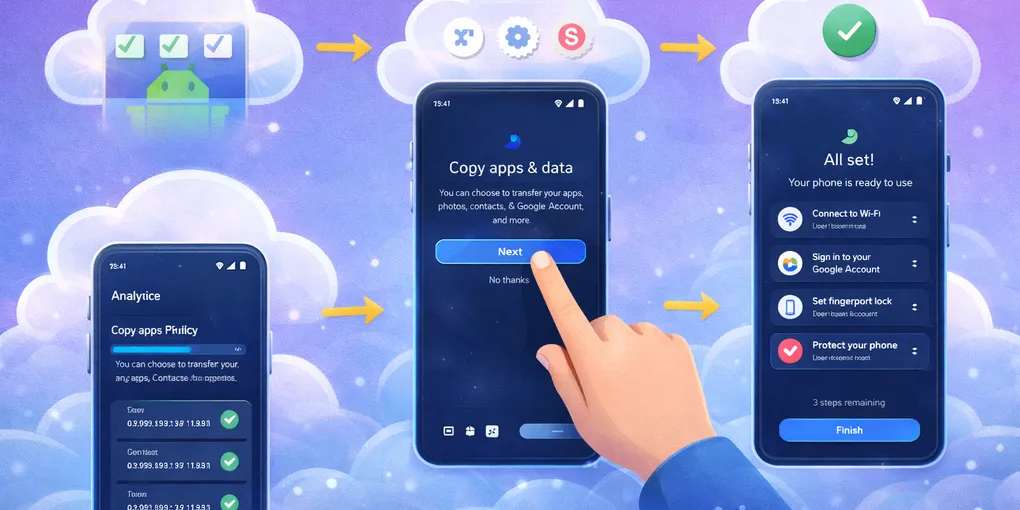
Getting Started with Cloud Phones: A Complete Tutorial
Cloud phones are virtual Android devices that run entirely in the cloud. This tutorial will walk you through everything you need to know to get started with cloud phones for your overseas operations.
What is a Cloud Phone?
A cloud phone is a virtual Android device hosted on a remote server. It works just like a real phone, but you access and control it through your browser or desktop app. Cloud phones are ideal for:
- Managing multiple social media accounts
- Running automation scripts 24/7
- Operating from any location in the world
- Scaling your operations without buying physical devices
Step 1: Create Your First Cloud Phone
After logging into QCCBot, follow these steps:
- Click Create Cloud Phone on the dashboard
- Choose your preferred Android version
- Select the region for your cloud phone
- Click Confirm to create your device
Your cloud phone will be ready within seconds.
Step 2: Configure Proxy IP
To protect your accounts and simulate different locations:
- Go to your cloud phone settings
- Click Proxy Configuration
- Enter your proxy IP address and port
- Select the proxy type (HTTP or SOCKS5)
- Click Save and restart your cloud phone
Each cloud phone should have its own unique proxy IP to maintain separate identities.
Step 3: Install Apps
Once your cloud phone is running:
- Open the built-in browser on your cloud phone
- Download your required apps (TikTok, Instagram, etc.)
- Or use the APK installer to sideload apps directly
- Log in to your accounts as normal
Step 4: Set Up Automation
QCCBot’s automation feature lets you run tasks automatically:
- Go to the Automation section in your dashboard
- Create a new script or choose from templates
- Assign the script to one or more cloud phones
- Set a schedule or trigger condition
- Click Run to start automation
Step 5: Batch Management
When managing multiple cloud phones:
- Select multiple devices from your dashboard
- Use Batch Operations to apply actions to all selected phones
- Monitor all devices from the unified dashboard
- Group phones by project for easier management
Tips for Best Results
- Use residential proxies for better account security
- Warm up new accounts gradually before posting
- Keep your cloud phones running 24/7 for consistent engagement
- Monitor device status regularly from the dashboard
Next Steps
Now that you have your cloud phones set up, explore QCCBot’s advanced features like script automation, batch posting, and multi-account management to scale your overseas operations.
Visit qccbot.com to get started today.