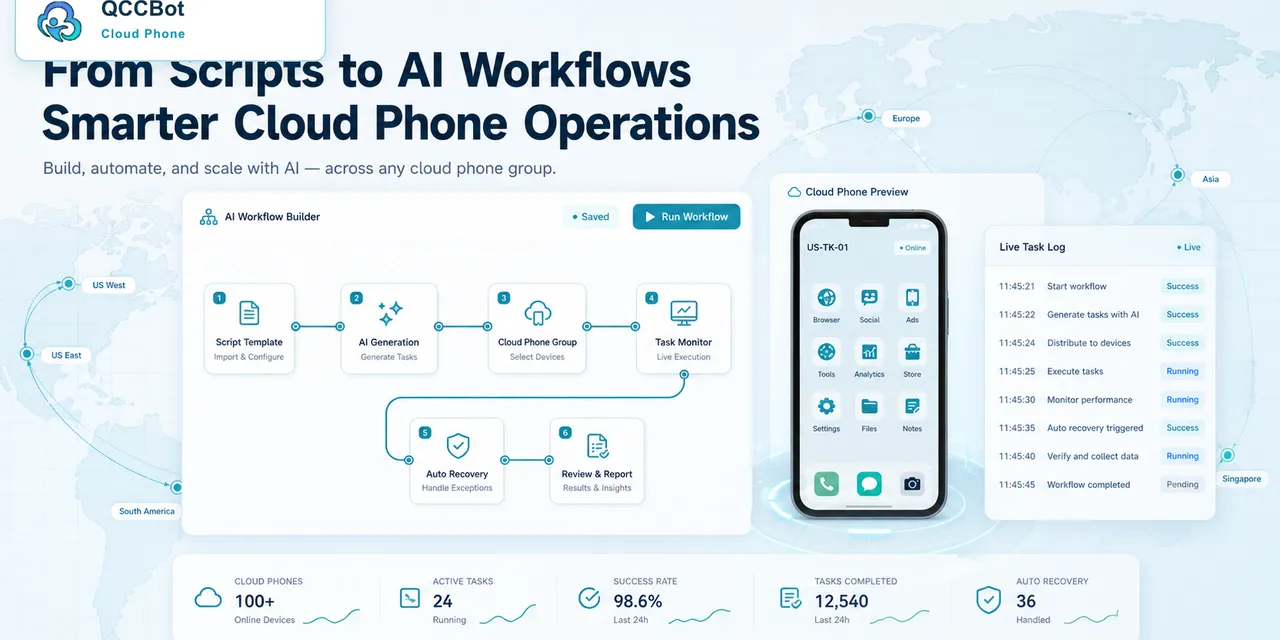
Task logs can look intimidating when you first start using cloud phones.
There may be timestamps, device IDs, script steps, screenshots, retry records, and error labels. A beginner may feel that logs are only useful for developers.
That is not true.
Good task logs are not just technical records. They help operators answer a simple question: what happened, and what should we do next?
The four questions to ask first
When a cloud phone task fails, do not read every line immediately.
Start with four questions:
- Where did the task stop?
- What was the last successful step?
- Did the system retry or recover?
- Does this need a human?
These questions turn a long log into an operations decision.
What a useful log should show
A useful cloud phone task log should include:
- task start time;
- task end time or current status;
- cloud phone or account group;
- current script step;
- last successful step;
- failure category;
- retry attempts;
- exception handling result;
- whether human review is needed.
The log does not need to be beautiful. It needs to be actionable.
Why “failed” is not enough
If a task simply says “failed,” the team still has to investigate manually.
That creates extra work:
- open the device;
- inspect the screen;
- guess what happened;
- compare with other devices;
- decide whether to rerun.
If 20 devices fail, this becomes slow and repetitive.
A better log says something like:
- 8 devices stopped on permission popup;
- 5 devices had network retry;
- 4 accounts are logged out;
- 3 devices hit an unknown screen.
Now the team can group the work.
A real example: one upload task fails on many devices
Imagine a media upload task fails on 12 cloud phones.
Without logs, every device looks like a separate problem.
With logs, the team may discover:
- 9 devices failed at the same album permission step;
- 2 devices failed because the file was missing;
- 1 account was logged out.
That means the team does not need 12 separate investigations. It needs three actions.
How logs help improve scripts
Logs are also useful for improving scripts over time.
If the same failure appears repeatedly, the team can update the script or add an exception rule.
For example:
- A button moved after an app update.
- A permission screen appears on new devices.
- The script needs a longer wait after login.
- A retry should be added after network loading.
Without logs, these patterns stay hidden.
What beginners should ignore at first
Do not try to understand every technical detail immediately.
Start with:
- status;
- step name;
- failure reason;
- device group;
- action taken.
Once those are clear, deeper debugging becomes easier.
How QCCBot fits
QCCBot uses task logs together with cloud phone groups and AI-assisted exception judgment.
The goal is not to create more records for people to read. The goal is to turn cloud phone activity into clearer decisions: retry, recover, pause, or review.
For teams that want mobile automation to be easier to debug, QCCBot can help connect cloud phone logs with AI exception handling.
When this workflow is a good fit
This workflow is a good fit for cloud phone automation when the task is frequent, repeatable, and easy to judge after it finishes.
Good signs include:
- the same app flow is checked every day;
- many accounts need the same action;
- operators spend time confirming normal states;
- failures are usually popups, loading issues, login state, or UI changes;
- the team needs logs for review.
Poor signs include:
- every run needs a different business decision;
- the flow involves sensitive account choices;
- success cannot be described clearly;
- the process changes every day.
Automation should start where the task is stable enough to measure.
A lightweight maturity model
Teams can grow the workflow in stages:
Stage 1: Run the task manually and write down the steps.
Stage 2: Turn the stable part into a script.
Stage 3: Add logs and failure labels.
Stage 4: Test on a small cloud phone group.
Stage 5: Add controlled recovery for safe exceptions.
Stage 6: Expand to more devices only after the results are easy to review.
This keeps the team from jumping from manual work to an unmanageable fleet overnight.
What QCCBot adds
QCCBot is designed for the middle ground between manual phone checking and fully custom engineering. Teams can run Android cloud phones, generate and debug AutoJS scripts with AI, watch task status, and use controlled exception takeover where it makes sense.
If this sounds like the kind of mobile work your team deals with, QCCBot can help you test the workflow on cloud phones and decide what should be automated first.
How to turn this into a weekly operating routine
A useful article should leave the reader with a next step, so here is a simple routine teams can use for task logs.
First, choose one workflow owner. This does not have to be a developer. It can be the person who understands the daily mobile task best. That person should define what normal means, what abnormal means, and which situations are too sensitive for automation.
Second, create a small test group. Three to five cloud phones are enough. Run the workflow there before expanding. The goal of the test is not only to prove that the script can pass. The goal is to discover the common ways it fails.
Third, review the failed runs by category. Do not open every device in random order. Group issues into practical buckets:
- app loading or network delay;
- permission or update popup;
- account logged out;
- UI changed after app update;
- script timing problem;
- human-review case.
Fourth, improve the workflow one category at a time. If half the failures come from a permission popup, solve that first. If the biggest issue is login state, add a pre-check before the main task. This is how thin automation becomes a real operating system.
What a good internal note should include
For every repeated mobile task, keep a short internal note:
- what the task is for;
- which cloud phone group it runs on;
- what success looks like;
- what the most common failures are;
- what AI is allowed to recover;
- what must go to a human;
- where the logs are reviewed.
This note prevents the workflow from living only in one person’s head.
The practical takeaway
The goal is not to make every mobile task fully automatic on day one. The goal is to make the work less blurry. Once the team can see the task state, failure reason, and review queue, automation becomes easier to trust.
That is the type of workflow QCCBot is meant to support: repeated Android app work that needs cloud phones, scripts, AI debugging, logs, and controlled exception handling in one place.