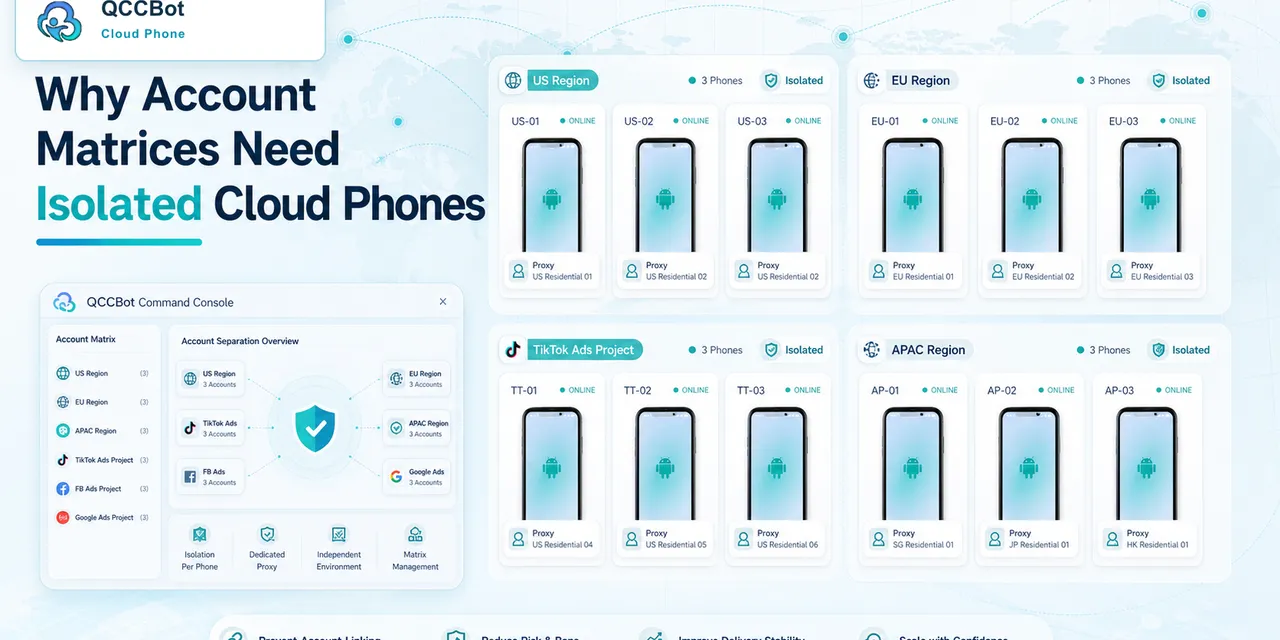
When a team manages many mobile accounts, the first problem is usually not automation. It is confusion.
Which account belongs to which phone? Which phone is for testing? Which one is for a client? Which market is this device supposed to represent?
Cloud phone groups help answer these questions.
What is a cloud phone group?
A cloud phone group is a simple way to organize devices.
Instead of seeing one long list of phones, you can group them by purpose.
For example:
- TikTok US accounts.
- YouTube test accounts.
- Client A phones.
- Japan market phones.
- Daily upload phones.
- QA testing phones.
This makes daily work easier to understand.
Why grouping matters
Without groups, every task takes extra thinking.
The operator has to ask:
- Which phone should I use?
- Is this account safe to test with?
- Did this phone already run today’s task?
- Which devices failed?
- Which phones belong to this project?
When phones are grouped clearly, the team spends less time guessing.
How groups help AI workflows
AI scripts are more useful when they run on the right devices.
For example, a social media browsing script should run on the social media test group, not on every phone in the account. A QA script should run on QA devices, not production accounts.
Groups make this safer and easier to review.
A simple setup for beginners
If you are just starting, do not create too many groups.
Start with three:
- Test group.
- Production group.
- Problem review group.
This gives the team a clean structure without making the dashboard complicated.
What to name groups
Use names that normal team members understand.
Good names are clear:
- TikTok US Test.
- Client A Upload.
- App QA Daily.
- New Account Warmup.
Avoid names that only one technical person understands.
Final takeaway
Cloud phone groups are not a small detail. They are the foundation for organized mobile work.
When devices are grouped clearly, scripts, logs, AI monitoring, and team handovers all become easier.
See how QCCBot helps teams organize cloud phone groups for multiple accounts.
Questions to ask before choosing a tool
If your team is evaluating tools for mobile account status and login exceptions, avoid choosing based only on a polished demo.
Ask practical questions:
- Can we group devices by account, market, project, or task?
- Can we run the same script across a small test group first?
- Can we see task status without opening every phone?
- Can failures be grouped by reason?
- Can AI help debug script errors?
- Can AI recovery be turned on or off?
- Can sensitive issues stay under human control?
These questions reveal whether the tool fits daily operations.
What good content teams and operations teams care about
They care less about abstract automation and more about predictable routines.
A good routine says: this task runs at this time, on this group, with this expected result, and these exceptions are handled in this way.
Once the routine is clear, automation becomes easier to improve. Without that routine, even advanced AI can feel chaotic.
A practical first step
Pick one task that wastes time every week. Run it on three cloud phones. Record every place it gets stuck. Then decide which stuck points are safe to automate and which should be reviewed.
That small test will teach more than a large rollout with no clear measurement.
How QCCBot fits
QCCBot gives teams the pieces to run that test: Android cloud phones, script execution, AI script generation, logs, and exception handling. The goal is to make repeated mobile work easier to operate, not harder to understand.
If this sounds like the kind of mobile work your team deals with, QCCBot can help you test the workflow on cloud phones and decide what should be automated first.
How to turn this into a weekly operating routine
A useful article should leave the reader with a next step, so here is a simple routine teams can use for account state checks.
First, choose one workflow owner. This does not have to be a developer. It can be the person who understands the daily mobile task best. That person should define what normal means, what abnormal means, and which situations are too sensitive for automation.
Second, create a small test group. Three to five cloud phones are enough. Run the workflow there before expanding. The goal of the test is not only to prove that the script can pass. The goal is to discover the common ways it fails.
Third, review the failed runs by category. Do not open every device in random order. Group issues into practical buckets:
- app loading or network delay;
- permission or update popup;
- account logged out;
- UI changed after app update;
- script timing problem;
- human-review case.
Fourth, improve the workflow one category at a time. If half the failures come from a permission popup, solve that first. If the biggest issue is login state, add a pre-check before the main task. This is how thin automation becomes a real operating system.
What a good internal note should include
For every repeated mobile task, keep a short internal note:
- what the task is for;
- which cloud phone group it runs on;
- what success looks like;
- what the most common failures are;
- what AI is allowed to recover;
- what must go to a human;
- where the logs are reviewed.
This note prevents the workflow from living only in one person’s head.
The practical takeaway
The goal is not to make every mobile task fully automatic on day one. The goal is to make the work less blurry. Once the team can see the task state, failure reason, and review queue, automation becomes easier to trust.
That is the type of workflow QCCBot is meant to support: repeated Android app work that needs cloud phones, scripts, AI debugging, logs, and controlled exception handling in one place.