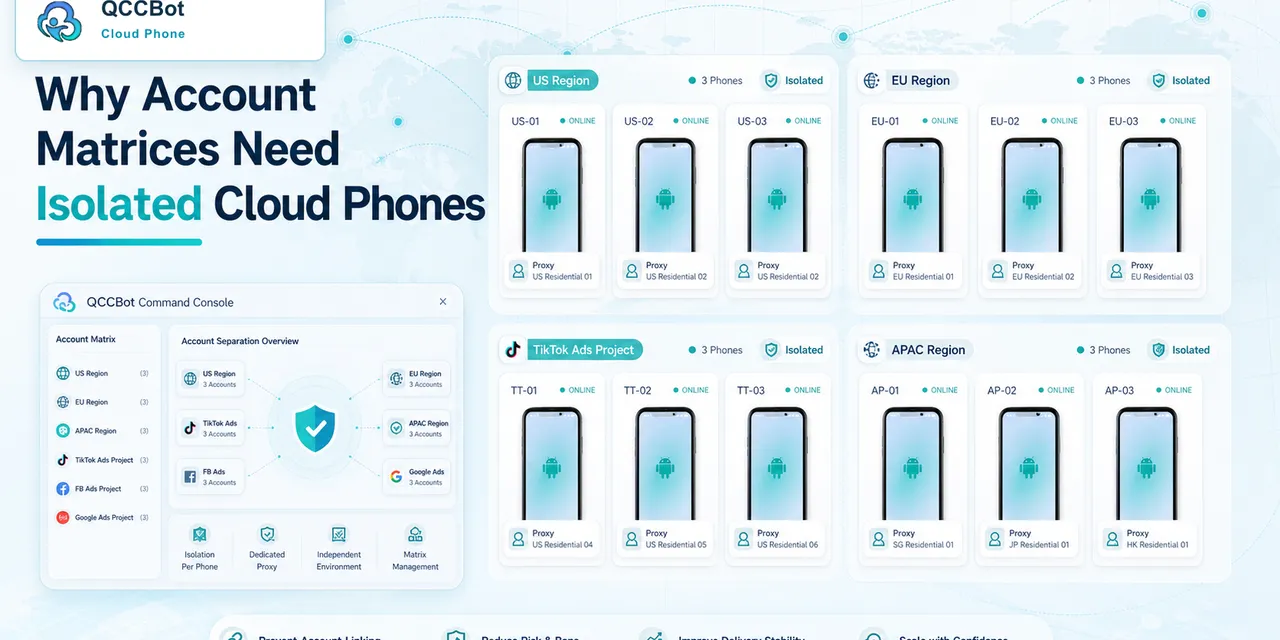
If you manage multiple mobile accounts, mixing everything on the same phone can become messy.
You may forget which account belongs to which project. Apps may share device history. Team members may lose track of what was done.
Cloud phone isolation helps solve this.
What does isolation mean?
Isolation means each cloud phone has its own Android environment.
You can think of it like giving each account its own phone, but without buying and storing physical devices.
This makes it easier to separate:
- Different accounts.
- Different clients.
- Different countries.
- Different campaigns.
- Testing and production work.
Why it matters for AI workflows
AI workflows need clear context. If one device is used for too many unrelated tasks, it becomes harder to understand what happened.
With separated cloud phones, logs and task results are easier to read.
For example, if a workflow fails, you can check the exact phone group and account type instead of searching through a mixed setup.
A simple example
A team managing social media accounts might create groups like:
- TikTok US accounts.
- TikTok Japan accounts.
- YouTube test accounts.
- Client A accounts.
- Client B accounts.
Each group can have its own scripts and task history.
How this helps small teams
Small teams often think organization is only for big companies. In reality, small teams need it even more because one person may handle many roles.
Isolation helps reduce mistakes, especially when work repeats every day.
Final takeaway
If your team manages multiple mobile accounts, separate environments make work easier to control. Cloud phones give you that separation without needing piles of physical devices.
QCCBot lets teams organize cloud phones by group, run scripts, and review task logs with clearer context.
Learn how QCCBot can help your team manage cloud phones and AI automation workflows.
The decision tree operators need
For mobile account status and login exceptions, the team should have a simple decision tree.
Start with the current screen:
- If the screen is expected, continue the task.
- If it is a known safe popup, recover and record it.
- If it is a network issue, retry within a limit.
- If it is a login or security issue, mark it for review.
- If it is unknown, pause and collect context.
This keeps the workflow from becoming either too fragile or too aggressive.
How this helps teams work faster
The time saving does not come only from automation. It also comes from better triage.
When failures are grouped, a teammate can fix the biggest category first. If 20 devices hit the same popup, update that handling once. If 5 accounts need login review, send only those accounts to the person responsible. If one script selector broke, debug that script instead of opening every device.
What to document
Every repeated workflow should have a short internal note:
- what the task does;
- which cloud phone group runs it;
- what success means;
- what failures are safe to recover;
- what failures need human review;
- where to check logs;
- who owns follow-up.
This documentation does not need to be long. It just needs to prevent confusion when the task runs every day.
How QCCBot supports this pattern
QCCBot helps by putting cloud phones, script execution, AI script assistance, task logs, and exception handling in one operating flow. That makes it easier to move from manual checking to a repeatable mobile workflow.
If this sounds like the kind of mobile work your team deals with, QCCBot can help you test the workflow on cloud phones and decide what should be automated first.
How to turn this into a weekly operating routine
A useful article should leave the reader with a next step, so here is a simple routine teams can use for account state checks.
First, choose one workflow owner. This does not have to be a developer. It can be the person who understands the daily mobile task best. That person should define what normal means, what abnormal means, and which situations are too sensitive for automation.
Second, create a small test group. Three to five cloud phones are enough. Run the workflow there before expanding. The goal of the test is not only to prove that the script can pass. The goal is to discover the common ways it fails.
Third, review the failed runs by category. Do not open every device in random order. Group issues into practical buckets:
- app loading or network delay;
- permission or update popup;
- account logged out;
- UI changed after app update;
- script timing problem;
- human-review case.
Fourth, improve the workflow one category at a time. If half the failures come from a permission popup, solve that first. If the biggest issue is login state, add a pre-check before the main task. This is how thin automation becomes a real operating system.
What a good internal note should include
For every repeated mobile task, keep a short internal note:
- what the task is for;
- which cloud phone group it runs on;
- what success looks like;
- what the most common failures are;
- what AI is allowed to recover;
- what must go to a human;
- where the logs are reviewed.
This note prevents the workflow from living only in one person’s head.
The practical takeaway
The goal is not to make every mobile task fully automatic on day one. The goal is to make the work less blurry. Once the team can see the task state, failure reason, and review queue, automation becomes easier to trust.
That is the type of workflow QCCBot is meant to support: repeated Android app work that needs cloud phones, scripts, AI debugging, logs, and controlled exception handling in one place.