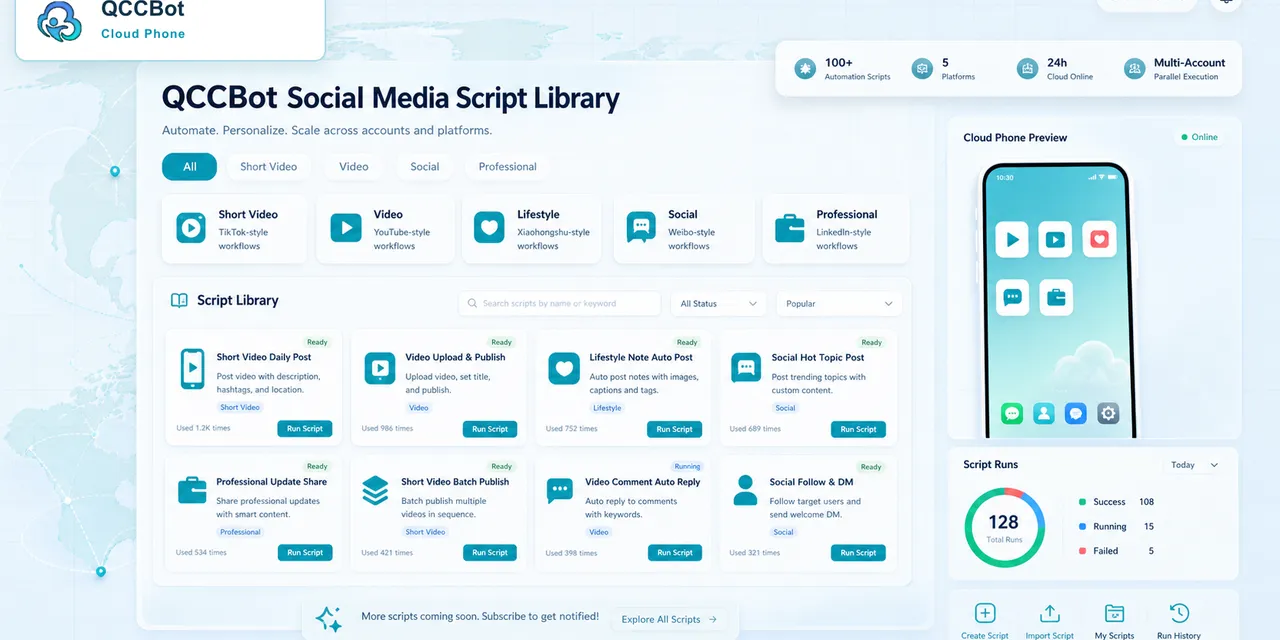
Content upload looks like one of the easiest mobile tasks to automate.
Open the app. Pick a video or image. Paste the caption. Tap publish. Record the result.
That is the clean version.
In daily operations, upload work is usually messier. The file may not be on the device. A permission popup may block the album. The app may take longer to load on some accounts. A caption may paste into the wrong field. One account may be logged out while the others are normal.
If a team is only uploading to one account, these are small annoyances. If the team uploads across 20, 50, or 100 accounts, these annoyances become the real bottleneck.
The question operators actually ask
Most teams are not searching for a grand automation platform at first.
They search for things like:
- “why does my upload task keep failing”
- “cloud phone batch upload stuck”
- “app permission popup blocks automation”
- “how to upload content to many accounts”
- “how to know which phone failed upload”
The problem is not just uploading content. The problem is knowing what happened when the upload did not finish.
A content upload workflow has more steps than it seems
The visible task is “publish a post.”
The real workflow is closer to this:
- Confirm the cloud phone is online.
- Confirm the target account is logged in.
- Confirm the media file is available.
- Open the target app.
- Handle permission prompts.
- Navigate to the upload screen.
- Select the correct file.
- Paste or generate the caption.
- Confirm the preview.
- Submit the post.
- Record success, failure, or pending review.
If any one of these steps is unclear, a batch workflow becomes fragile.
That is why a good upload workflow should not be written as one long script. It should be designed as a sequence of checkpoints.
What usually breaks first
The first failures are rarely dramatic.
They are ordinary mobile app details:
- Gallery permission is not granted.
- The app changed a button label.
- The phone is on a different screen than expected.
- The upload button appears after a slow network request.
- A file name changed.
- The account is asked to verify identity.
- The app shows a “try again” screen.
A human operator can understand these situations quickly. A rigid script may not.
That is why teams need both automation and exception handling.
A better approach: design for checkpoints, not clicks
Instead of thinking “the script should click these buttons,” think “the system should prove each stage is ready.”
For example:
- Before opening the app, check whether the file exists.
- Before selecting media, check whether album access is available.
- Before publishing, check whether the preview loaded.
- After publishing, check whether the app shows a success state.
- If a step fails, record the exact stage.
This makes the workflow easier to debug.
If 12 devices fail, the team can see whether all 12 failed at the same permission step or whether each phone has a different issue.
Where AI helps without making the workflow risky
AI should not blindly publish content or skip account warnings.
The useful role for AI is more practical:
- identify that a cloud phone is stuck on a permission screen;
- explain that the task stopped before media selection;
- suggest a script fix when a UI element changed;
- retry safe steps such as reload or back navigation;
- mark sensitive account prompts for human review.
This is the difference between “automation that keeps clicking” and “automation that understands when it is off track.”
How QCCBot fits the workflow
QCCBot combines Android cloud phones, AutoJS script execution, AI script generation, task logs, and controlled AI exception takeover.
For content upload teams, that means the upload process can be broken into visible stages. Operators can see which accounts finished, which phones are stuck, and which errors are safe to recover.
It is not about removing people from the workflow. It is about keeping people away from repetitive checks and bringing them in when judgment is actually needed.
If your team uploads content across many mobile accounts, QCCBot can help turn that work into a monitored AI cloud phone workflow.
What makes this a real operations problem
AI cloud phone automation becomes difficult when the team has to repeat it across many accounts, apps, or regions. One small issue is easy to fix. The same issue across 40 cloud phones becomes a queue.
That is why the best workflows are not written only around clicks. They are written around decisions:
- Is the app in the expected state?
- Is the account usable?
- Did the task move to the next step?
- Did the system find a known exception?
- Is this safe to recover automatically?
- Should this be assigned to a human?
When these decisions are visible, the workflow becomes easier to trust.
What beginners usually miss
Beginners often start with the script. Experienced operators start with the process.
The script is only one part of the system. The full workflow also needs:
- device grouping;
- account separation;
- task status;
- logs;
- retry rules;
- exception labels;
- a review queue.
Without those pieces, a script may work in a demo but fail in daily operations.
How to avoid making the workflow too complicated
The answer is not to add more automation everywhere. Start by removing ambiguity.
Use short task names. Keep each workflow focused. Separate normal results from abnormal results. Do not mix account risk, network loading, UI changes, and permission popups into the same failure bucket.
A workflow that clearly says “these 6 devices need login review” is more useful than a workflow that simply says “6 tasks failed.”
Where QCCBot naturally fits
QCCBot is useful when AI cloud phone automation needs to happen inside real Android app environments, not just browser tabs or API calls. Cloud phones provide the Android runtime. AutoJS scripts run the repeated steps. AI assistance helps generate, debug, and recover suitable script flows. Logs make the result reviewable.
If this sounds like the kind of mobile work your team deals with, QCCBot can help you test the workflow on cloud phones and decide what should be automated first.