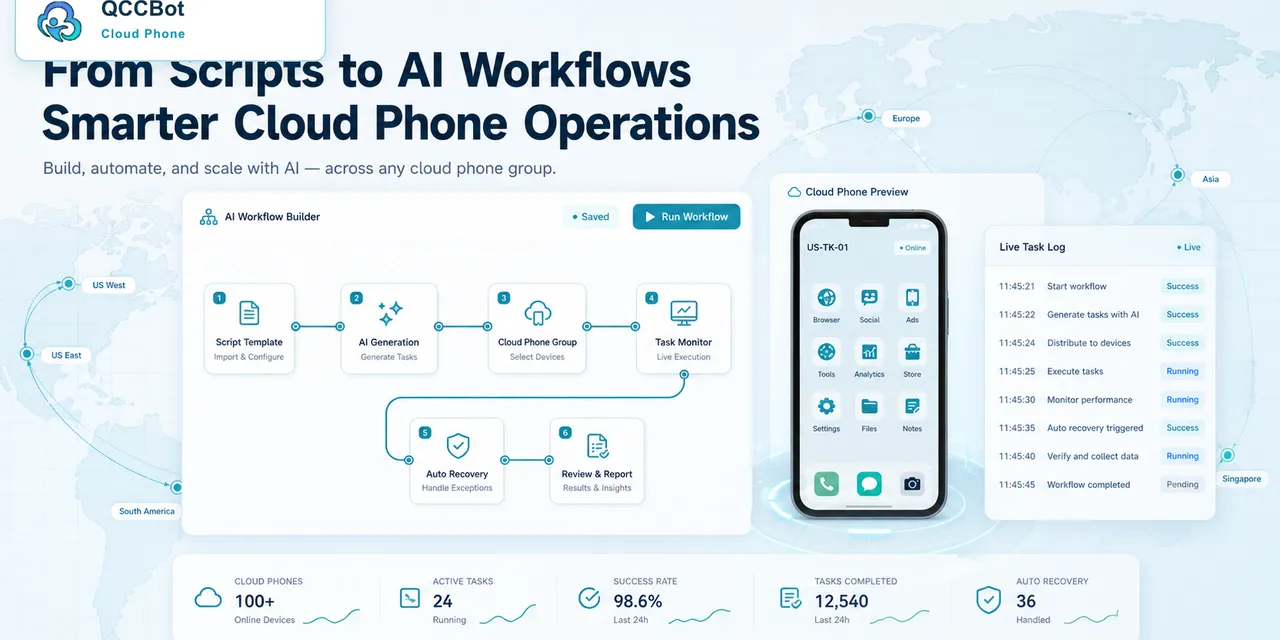
Developers do not need another buzzword. They need a clear way to control devices, run tasks, and know what happened.
Cloud phone API workflows are useful when mobile work needs to connect with internal tools, scripts, or operation systems.
What developers usually need
A practical workflow needs:
- A way to create or select devices.
- Device groups.
- Script execution.
- Task status.
- Logs.
- Error handling.
- A way to retry or review failed tasks.
Without these pieces, automation becomes hard to maintain.
Where AI helps
AI can help create a first version of a script or explain why a task failed. It can also help operators describe a business goal in plain language.
The developer still owns quality and review. AI mainly reduces the time spent building the first draft or reading repetitive failures.
A simple example
An internal tool might need to start a cloud phone task, wait for completion, then show the result to an operator.
The important questions are:
- Which device ran the task?
- Did it finish?
- If it failed, where did it stop?
- Can it be retried?
- Does a human need to review it?
That is the real value of a workflow.
QCCBot and BashClaw
QCCBot provides the cloud phone environment. BashClaw gives developers a command-line layer for controlling cloud phone work.
Together, they help teams build practical mobile automation without managing physical devices by hand.
Final takeaway
Cloud phone API workflows are useful when developers need repeatable Android tasks with clear state and logs. AI helps speed up script creation and failure review, but the main value is control and visibility.
Learn how QCCBot can help your team manage cloud phones and AI automation workflows.
What makes this a real operations problem
developer cloud phone API workflows becomes difficult when the team has to repeat it across many accounts, apps, or regions. One small issue is easy to fix. The same issue across 40 cloud phones becomes a queue.
That is why the best workflows are not written only around clicks. They are written around decisions:
- Is the app in the expected state?
- Is the account usable?
- Did the task move to the next step?
- Did the system find a known exception?
- Is this safe to recover automatically?
- Should this be assigned to a human?
When these decisions are visible, the workflow becomes easier to trust.
What beginners usually miss
Beginners often start with the script. Experienced operators start with the process.
The script is only one part of the system. The full workflow also needs:
- device grouping;
- account separation;
- task status;
- logs;
- retry rules;
- exception labels;
- a review queue.
Without those pieces, a script may work in a demo but fail in daily operations.
How to avoid making the workflow too complicated
The answer is not to add more automation everywhere. Start by removing ambiguity.
Use short task names. Keep each workflow focused. Separate normal results from abnormal results. Do not mix account risk, network loading, UI changes, and permission popups into the same failure bucket.
A workflow that clearly says “these 6 devices need login review” is more useful than a workflow that simply says “6 tasks failed.”
Where QCCBot naturally fits
QCCBot is useful when developer cloud phone API workflows needs to happen inside real Android app environments, not just browser tabs or API calls. Cloud phones provide the Android runtime. AutoJS scripts run the repeated steps. AI assistance helps generate, debug, and recover suitable script flows. Logs make the result reviewable.
If this sounds like the kind of mobile work your team deals with, QCCBot can help you test the workflow on cloud phones and decide what should be automated first.
How to turn this into a weekly operating routine
A useful article should leave the reader with a next step, so here is a simple routine teams can use for developer workflows.
First, choose one workflow owner. This does not have to be a developer. It can be the person who understands the daily mobile task best. That person should define what normal means, what abnormal means, and which situations are too sensitive for automation.
Second, create a small test group. Three to five cloud phones are enough. Run the workflow there before expanding. The goal of the test is not only to prove that the script can pass. The goal is to discover the common ways it fails.
Third, review the failed runs by category. Do not open every device in random order. Group issues into practical buckets:
- app loading or network delay;
- permission or update popup;
- account logged out;
- UI changed after app update;
- script timing problem;
- human-review case.
Fourth, improve the workflow one category at a time. If half the failures come from a permission popup, solve that first. If the biggest issue is login state, add a pre-check before the main task. This is how thin automation becomes a real operating system.
What a good internal note should include
For every repeated mobile task, keep a short internal note:
- what the task is for;
- which cloud phone group it runs on;
- what success looks like;
- what the most common failures are;
- what AI is allowed to recover;
- what must go to a human;
- where the logs are reviewed.
This note prevents the workflow from living only in one person’s head.
The practical takeaway
The goal is not to make every mobile task fully automatic on day one. The goal is to make the work less blurry. Once the team can see the task state, failure reason, and review queue, automation becomes easier to trust.
That is the type of workflow QCCBot is meant to support: repeated Android app work that needs cloud phones, scripts, AI debugging, logs, and controlled exception handling in one place.